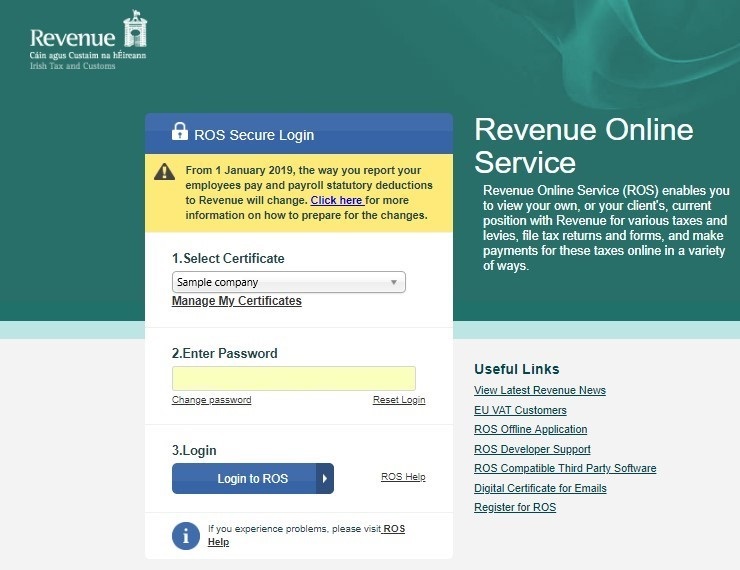
This article is a guide on Transferring ROS certificate from one end to the other. Having your digital certificate on a different computer and running the Thesaurus Payroll Manager on other computer is quite not good to consider.
Let’s start quick:
First- Save your ROS Digital Certificate
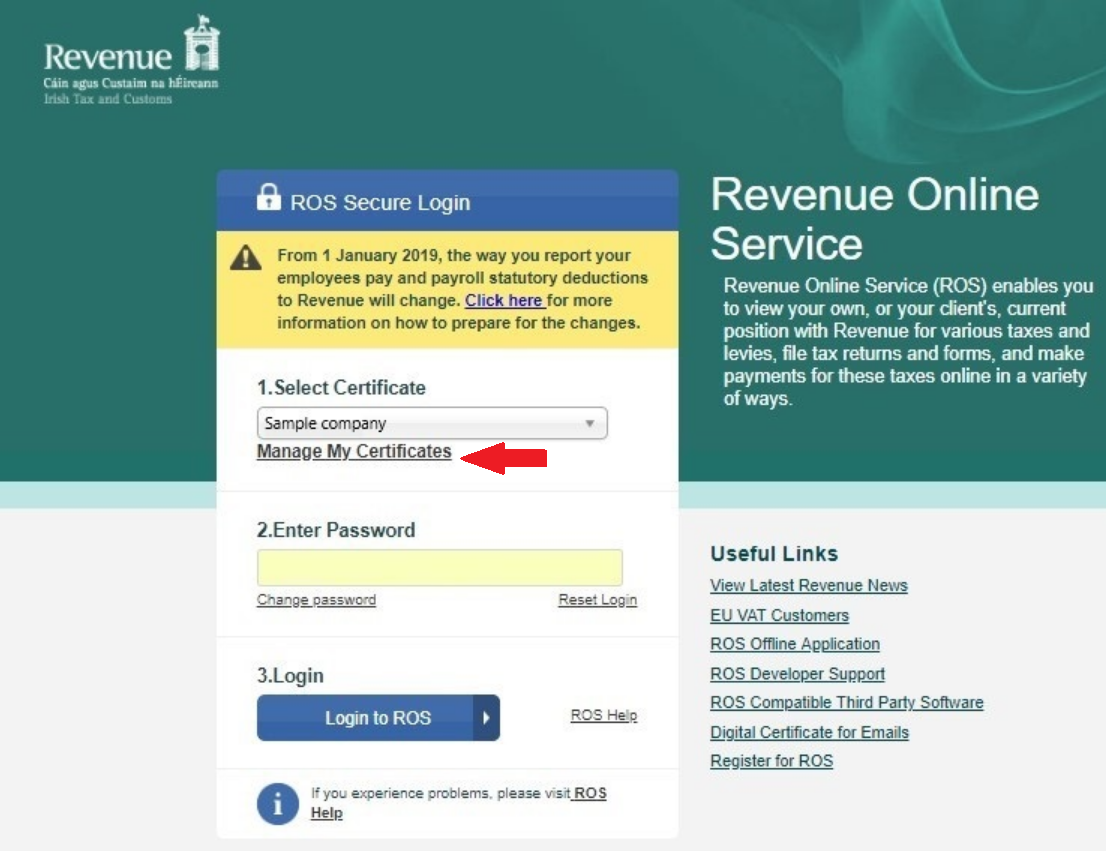
- On the computer on which your ROS digital certificate, go to your ROS login page and click Manage My Certificates. Refer to the picture below:
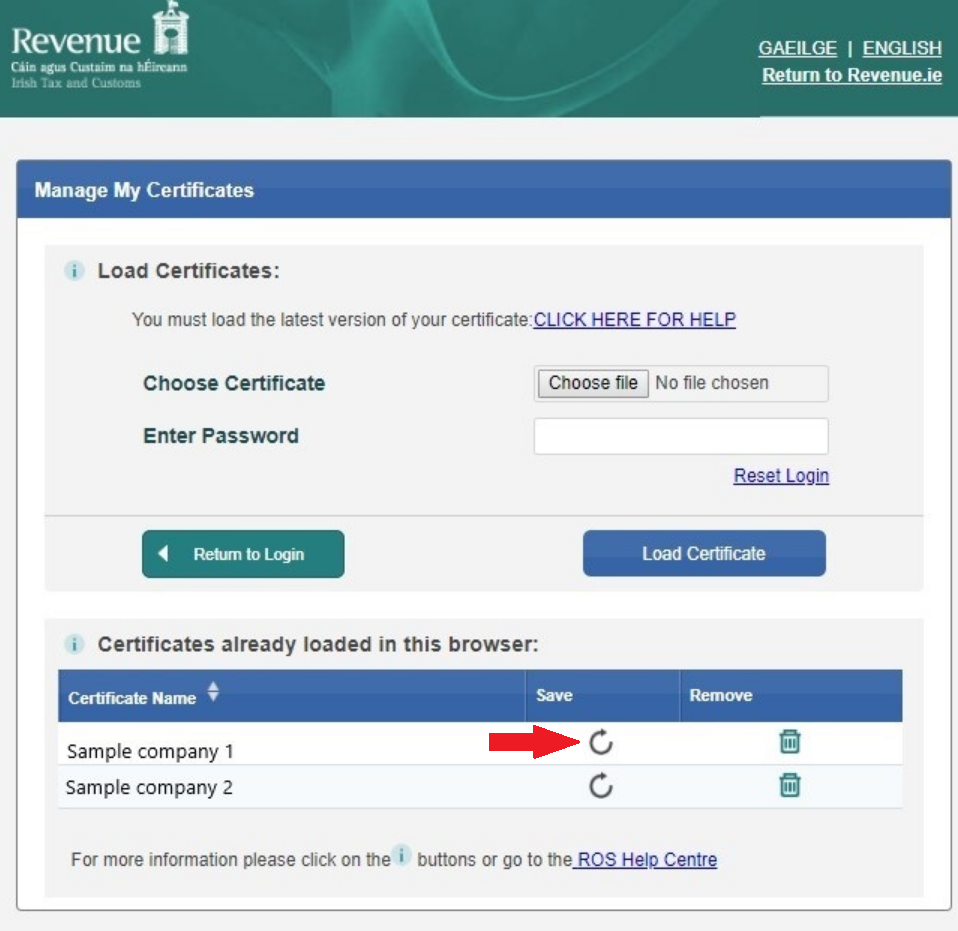
- After selecting ‘Manage My Certificates’, the next screen will have the confirmation on which digital certificates has already been loaded on your computer.
Click the symbol under the ‘Save’ heading for the certificate you wish to use on your computer. As shown below:
- Click Save at the prompt.
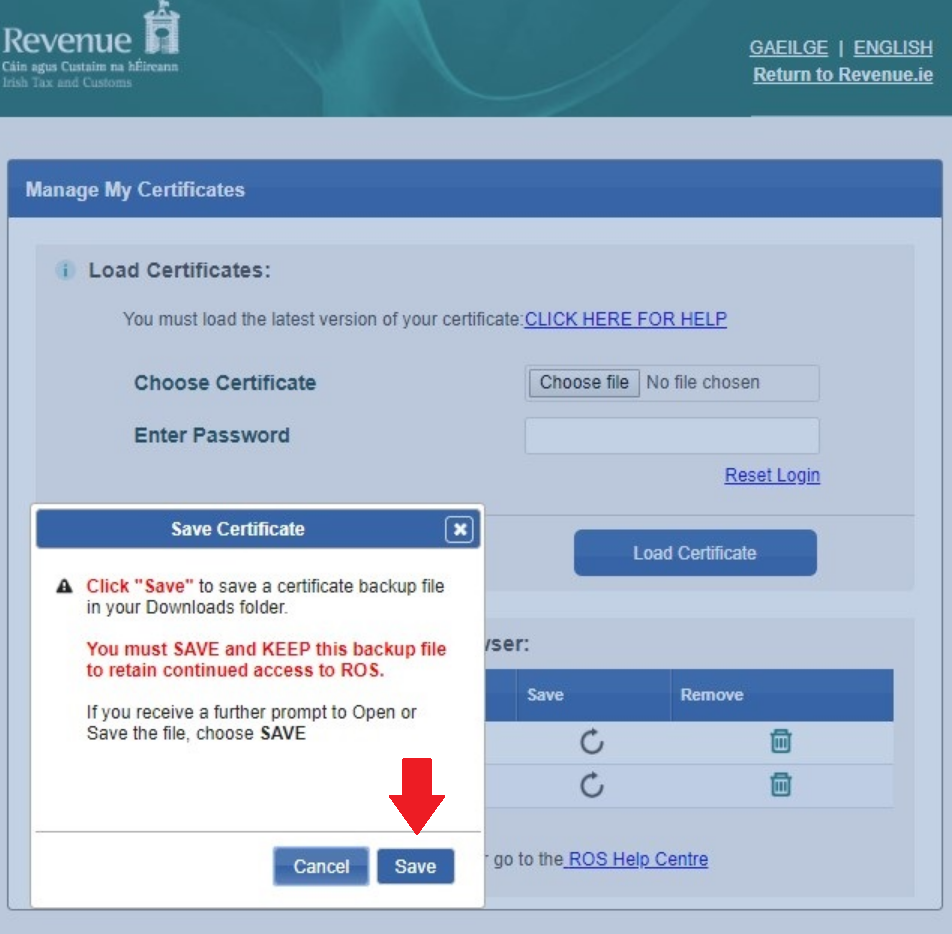
Depending on the browser, the certificate will now either save automatically into your Downloads folder, or ask you to save the certificate to a folder of your choice.
- If asked to save to a folder of your choice, simply save the certificate to an external drive e.g. a USB or online storage live DRIVE, ready for transferring to the computer you are using for your payroll.
- If the certificate saves automatically to your Downloads folder, you will need to access your Downloads folder and transfer the certificate to an external drive e.g. a USB or online storage, ready for transferring to the computer you are using for payroll.
NB: Certificates are saves in ‘.p12.bac’ file format.
Second – Transfer your ROS Digital Certificate
As all is set for the transfer of your certificate to the computer on which your Thesaurus Payroll Manager is installed:
- Insert the USB key in the current computer you have the Thesaurus Payroll Manager installed.
- Now, Browse to the location of where you saved your certificate in Step 1 e.g. your USB , online storage, etc.
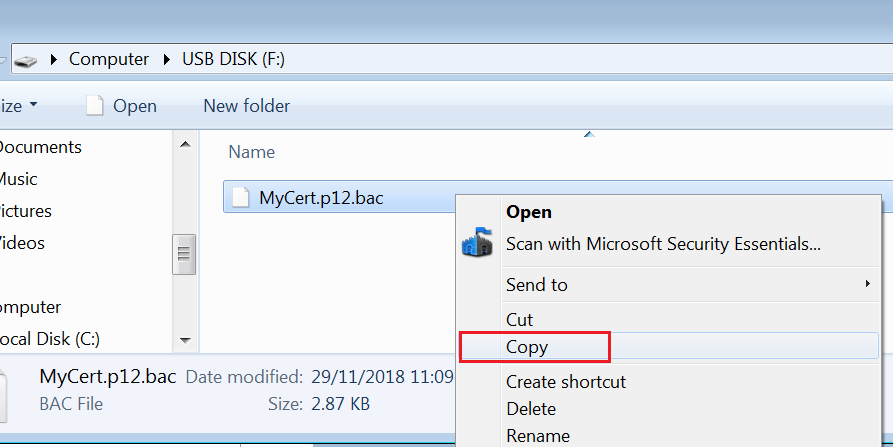
- Copy this certificate (the .p12.bac file) to a location of your choice on your computer. Refer to the picture below:
- If you have a RosCert folder, which is located in your ROS folder on your C drive, it is recommended that you save the certificate here.
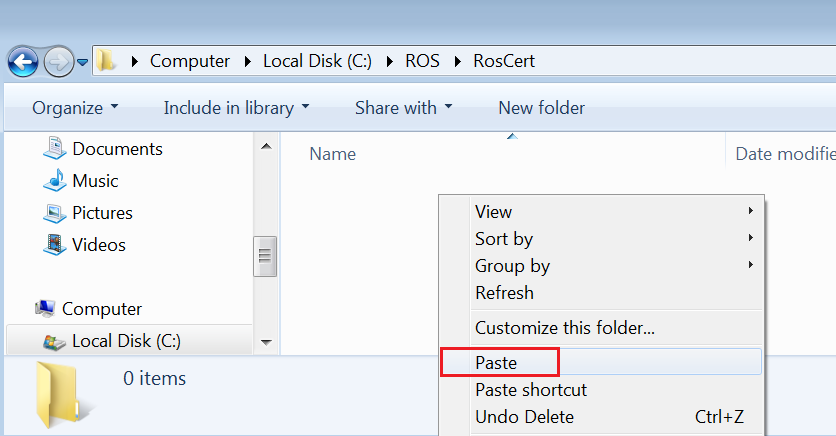
As soon as your certificate is saved, you will now be ready to add your certificate into Thesaurus Payroll Manager.
- Guidance on adding an employer digital certificate into the software can be found here
- Guidance on adding an agent digital certificate into the software can be found here
Third – Load your ROS digital certificate on to your new computer
Below steps will take your through how to access your ROS account on the computer you have the digital certificate transferred to.
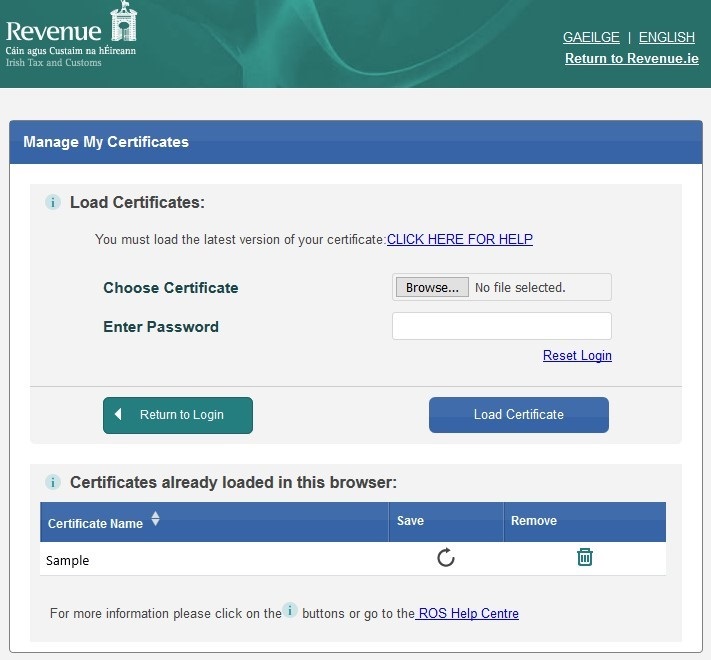
- Go to the ROS login page and click Manage My Certificates.
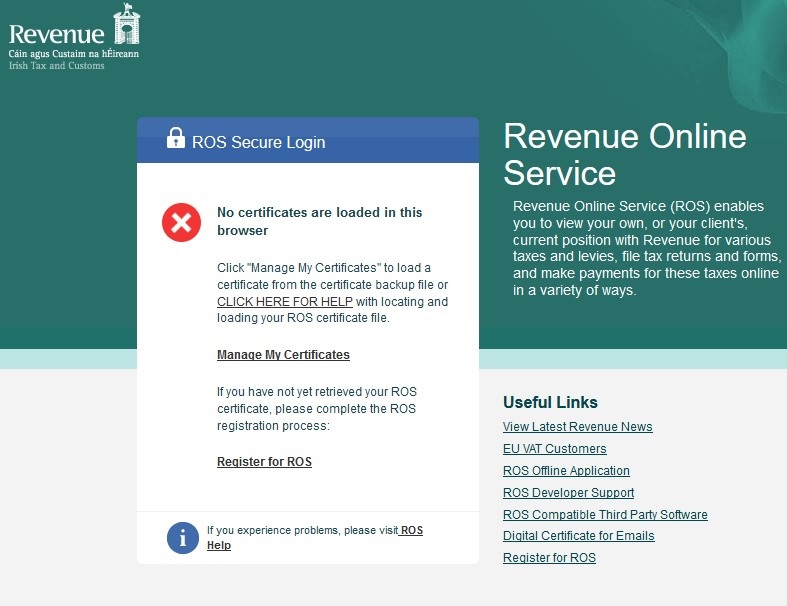
- Next, go to the Load Certificates section
- Click on the Browse button beside Choose Certificate.
Browse to the location where you saved your ROS digital certificate to in Step 2 and double click on the .p12.bac file to select it.
This will load the file into your browser. You should be able to see the file on screen now. - Enter the certificate password. This is the same password that you used to log into ROS on your previous computer.
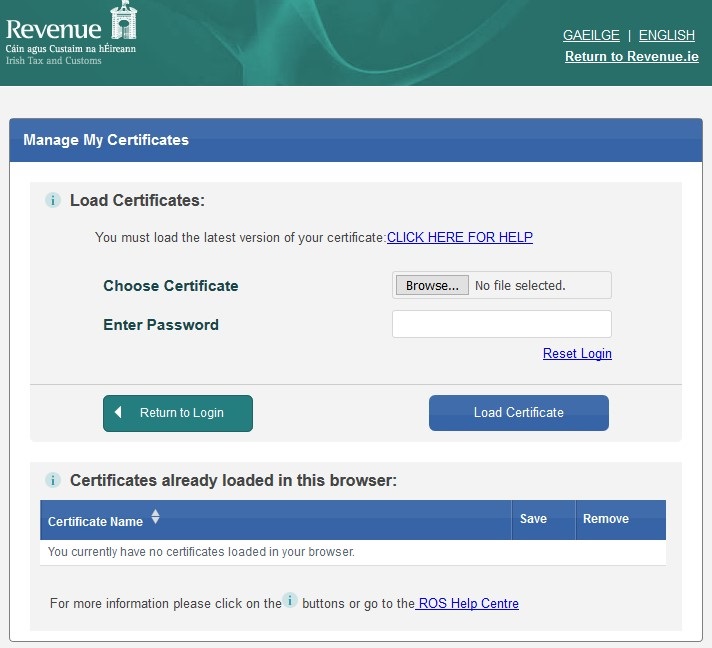
- Next, click the blue Load Certificate button.
Your certificate will now load and subsequently appear in the Certificates already loaded in this browser section.
- On returning to your ROS Login screen, your certificate name will now be available for selection.
Simply enter your password in order to log in to ROS going forward.