Below are the procedures to check your Efiling Status.
Step 1: Logon to eFiling
Logon to eFiling by using your login name and password. If you are not yet an eFiler, register at www.sars.gov.za. You need to be registered for eFiling and have one tax product (such as Income Tax, Value-Added Tax (VAT) or Pay-As-You-Earn (PAYE)) already activated on your taxpayer profile in order to activate the Tax Compliance Status (TCS) service.
Step 2: Activate the Tax Compliance Status service
EFiling administrators for organisations and tax practitioners must ensure that the correct rights are allocated to users who need access to the tax compliance status function. For more information on allocating these rights, please refer to the Guide to the Tax Compliance Status functionality on eFiling. You only need to activate your Tax Compliance Status once and it will remain active. Complete the Merge Entities function to see a complete profile of all taxes (if you are registered for more than one tax). Once you have activated it and you have merged or declared all your registered tax reference numbers, you will be given access to your “My Compliance Profile” (MCP).
Step 3: View your “My Compliance Profile”
You can view your tax compliance profile by selecting the “My Compliance Profile” menu option. Your compliance status will be displayed as determined by SARS against the following four compliance requirements:
- Registration Status – you have to be registered and active for the tax products that you are liable for;
- Submission of Returns – make sure that no returns are outstanding after the filing due dates;
- Debt – make sure that you do not have any outstanding tax debt with SARS for which payment arrangements have not been made;
- Relevant Supporting Documents – make sure that you did not fail to submit information requested from you by SARS.
This is what the MCP screen looks like:
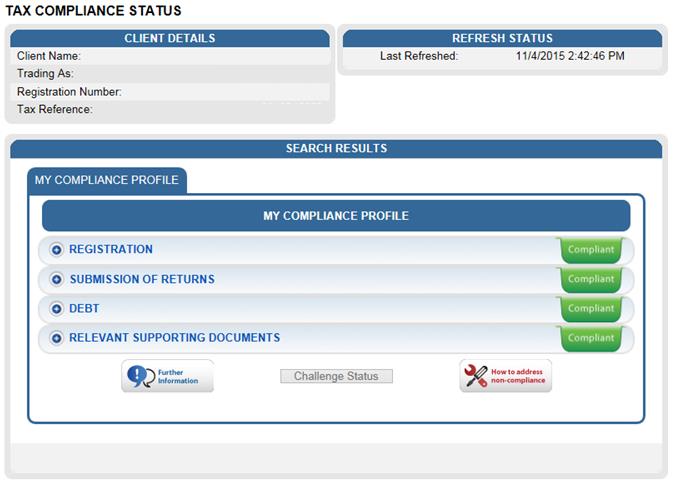
A colour-coded profile will appear to indicate whether you are tax compliant or not.
- Red – Your tax affairs are not in order and you are not tax compliant
- Green – Your tax affairs are in order and you are tax compliant.
By selecting the expand buttons on the left hand side of Registration, Returns Submission, Debt and Relevant Supporting Documents, more information regarding the compliance status will be displayed for the eFiler. If you see a red button for non-compliance, expand it to see the underlying cause for the non-compliance and how to fix it.
On the highest level of the MCP, these colour-coded indicators are an overall summary of your tax compliance status with regard to the compliance requirements.
For more detail on the steps, see our Guide to the Tax Compliance Status functionality on eFiling.
What do I do if “My Compliance Profile” is RED?
Option 1: Remedy Non Compliance
In order to address non-compliance, you can select the “Non-compliant” status indicator to see what steps need to be taken to rectify the non-compliance. Alternatively, you can rectify the non-compliance through the existing channels and processes available.
Option2: Challenging your tax compliance status
If you are not satisfied or do not agree with your tax compliance status, you can motivate why SARS needs to re-evaluate your tax compliance status. This can be done on eFiling by clicking on “Challenge Status” and providing a motivation as to why SARS should re-evaluate your tax compliance status. After submission you will receive an acknowledgement letter and case number. If you have supporting documentation as proof of your case, you will also now be able to submit it via the case work page. The “My Account Enquiries” function under the Tax Compliance Status menu allows you to view account enquiries including progress on “Challenge Status” submissions.
Check E-File Taxes Status With TaxAct
To obtain your Electronic Filing Status:
- Visit the TaxAct Electronic Filing Status page
- Choose the return type which you filed
- Enter your Social Security Number, Zip code, and last name
- Click Check E-File Status
This will display the status of your filed return.
Note. If you cannot find your return status:
- You may be entering the wrong Social Security Number (SSN).
- The SSN entered should be the primary taxpayer SSN for the return (first SSN listed on the 1040). You cannot locate a return by the secondary taxpayer or a dependent.
- There may be a typo in the primary taxpayer’s SSN. Please verify the information entered in Basic Information.
- You may not have successfully completed the electronic filing process.
- You may have progressed as far as printing but have not actually submitted electronically.
- You may have unknowingly selected to paper file instead of electronically file. To successfully complete the electronic filing process, you must complete all steps and click the Submit button. If the submission was successful, you will see a screen indicating that your return was submitted.