Samsung Kies connects your mobile phone to your PC, making it easier for you to synchronize data between devices and find new apps.
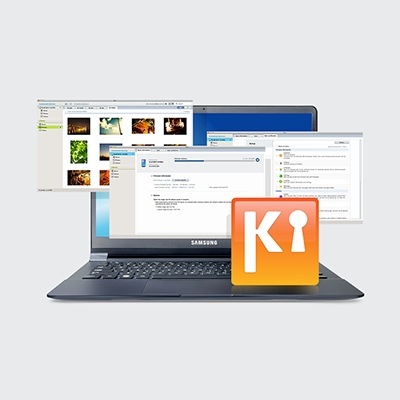
Samsung Kies connects your mobile phone to your PC, making it easier for you to synchronize data between devices and find new apps.
How to establish Kies connection:1Disconnect the device and data cable from your computer, then reconnect again2If you are connecting the USB cable to a USB hub, try connecting the cable directly to your computer3Close Kies and reopen the application4Reboot your computer and your device
If the connection error continues, try the following:
• Remove SD Card – turn off the mobile device completely. Remove the SD card and then try connecting the mobile device to the PC using Kies again.
• Check for defective USB Cable – The problem could be due to faulty USB Cable or USB port of the PC. Try to connect the USB Cable to a different USB port. If it does not work, connect other devices to see if the PC can detect it using the same USB cable.
• Run Troubleshoot connection error on Kies to fix the problem. The entire process includes reinstalling the driver and fix any errors found. For Kies 3, go to Tool > Reinstall device driver > click Reinstall. Once the process is completed, reconnect your Samsung mobile device. Mac® : If you are using a Mac®, click Tools > Install driver to install the necessary drivers or your Samsung device.
Note:
Kies does not support all Samsung devices. Please refer below whether your model is supported and you have download the correct Kies version:
• Kies (PC): Galaxy S4, Note 3 and older Models released before Sept 2013
• SmartSwitch (PC): Supported SmartPhone/ Tablets from Galaxy Note III (Andriod OS 4.3 or over)
• SmartSwitch (Mac): Support all Mac OS X version, support all Samsung’s Smartphones Models